

Outsource IT Support – Empower Your Business in the UK
Here at GSDIT, we’ve seen a surge in businesses looking to outsourced IT support. But what exactly is outsourced IT support, and why should your SME consider it?

Enable pointer trails to help track the cursor during quick movements.
Adjust pointer speed and precision to match your display setup.
Use high-contrast themes alongside pointer changes for easier screen navigation.
Adjust display scale and other interface elements if you want the pointer to be easier to follow on screen.
Try built-in tools like Magnifier or Narrator for extra accessibility support; with Magnifier, you can switch zoom levels for easier pointer tracking, and Windows accessibility help has more info.

Most users stick with the default white mouse pointer in Windows 11, but this small arrow was designed for average eyesight on standard screens. On large displays, multi-monitor setups, and during screen sharing or remote meetings, that default cursor is often harder to track, so changing the size and colour of your mouse cursor improves visibility, reduces eye strain, and makes navigation easier and more comfortable. For Windows 11 users who want a pointer that is easier to see throughout the day, this guide explains why these changes help, how to adjust cursor size and colour, practical ways to improve pointer visibility further, and how IT teams can manage these settings across business devices.
Windows 11 lets you easily customise your mouse pointer to suit your needs, and changing its size and colour can improve overall computer interaction. Increasing the pointer size helps you track it across big or multi-screen setups. Larger high-contrast pointers can be a huge help for users with visual impairments because they are faster to spot. Choosing a high-contrast colour like bright yellow or lime green makes the cursor stand out with a clear shape and stark contrast against busy backgrounds, reducing distraction whether you’re working in Outlook, a browser, or specialised software.
A larger, more visible cursor reduces eye fatigue during long hours at the computer, and a brighter pointer can help your eyes relax and decrease fatigue over long sessions. It also speeds up navigation when the cursor is easy to see and move accurately, reducing mis – clicks and helping customise workflows for better productivity, which makes Windows easier to use day to day. In graphic design, custom-coloured cursors stand out against complex interfaces, while in gaming, vibrant pointers can stay visible during fast-paced play. For remote meetings and screen sharing, a bright pointer helps colleagues follow your actions clearly.
Changes apply immediately with no need to save or restart.
On older PCs, windows 10 is also an option, with the same standard, black, inverted, and custom colour choices, plus up to 15 pointer sizes in newer builds.
GSDIT (Backup Data Ltd) helps UK businesses standardise accessible pointer settings across all devices. We can deploy cursor size and colour defaults via managed IT support, ensuring your team benefits from clearer, more comfortable screen interaction.
If your staff struggle with mouse visibility or you want to reduce basic IT support queries, contact GSDIT for expert assistance.
Most users find a medium to large pointer size ideal on 1080p or 1440p screens. Larger displays or multi-screen setups may need bigger sizes for ease of tracking.
Yes. IT admins can use group policies or management tools to enforce standard pointer sizes and colours across Windows 11 devices.
No. Pointer customisation in Windows 11 works system-wide and is compatible with most applications.
No noticeable impact on performance or battery life occurs when adjusting cursor size or colour.
Customising your mouse pointer in Windows 11 is a quick, simple step that makes a big difference for comfort and productivity. Give it a try today!
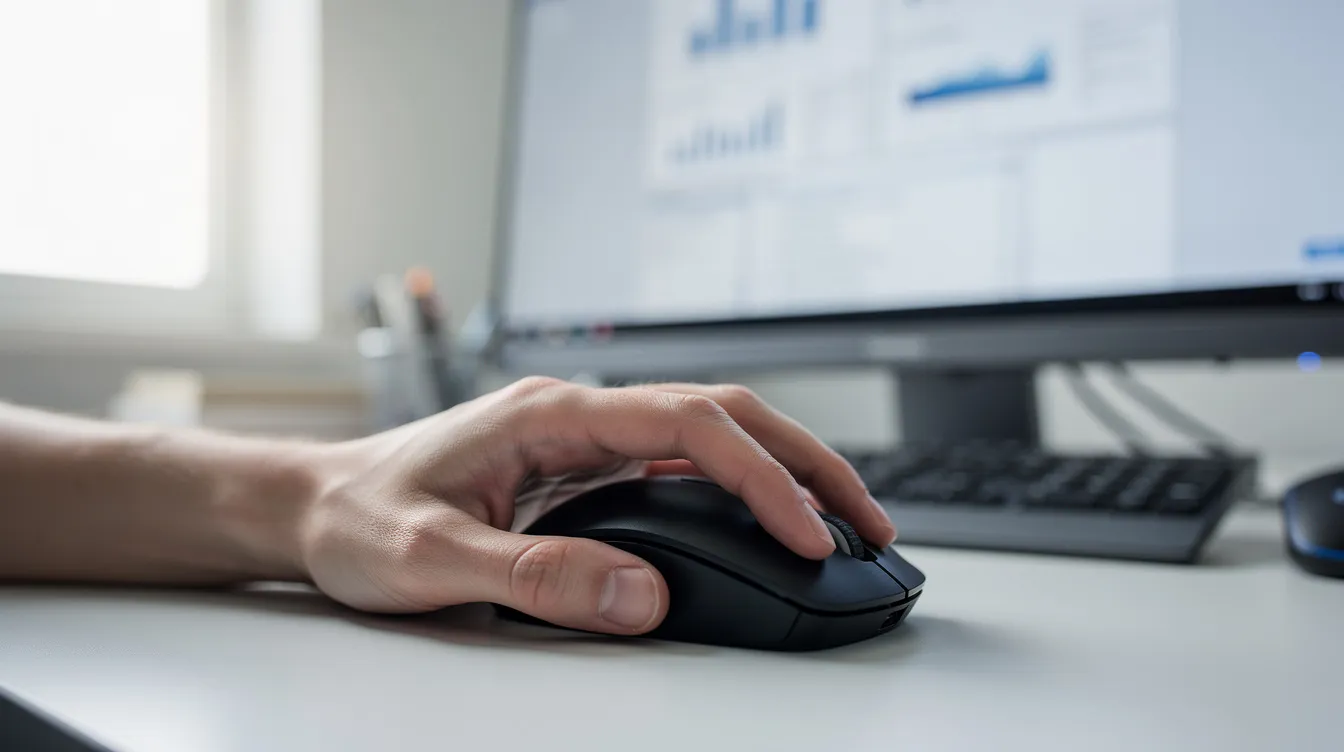
Tap or click through the same Settings path shown below for this solution.
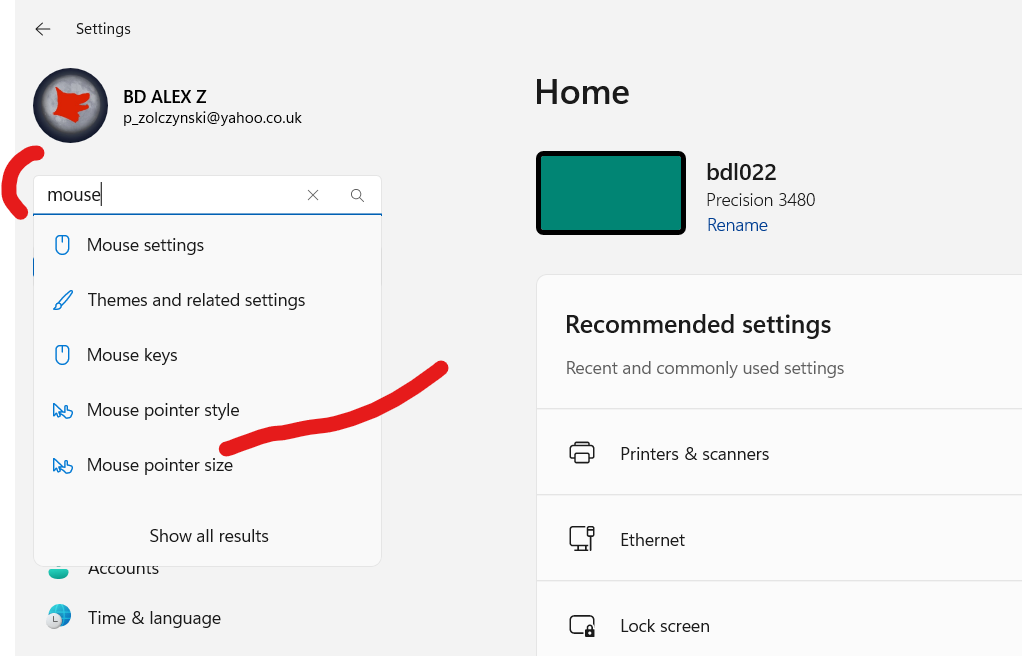
Depending on your Windows layout, you may need to enter the Accessibility area first.
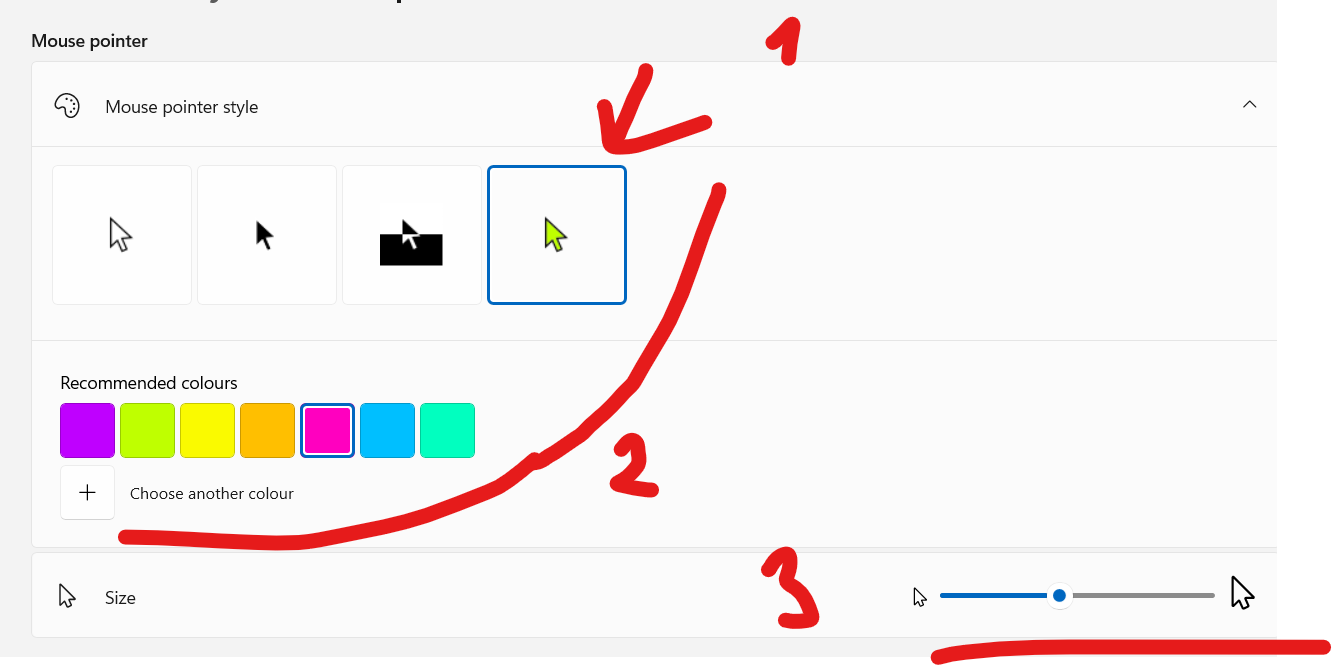
If you need a different solution, you can also use Run as an alternative advanced route.

Here at GSDIT, we’ve seen a surge in businesses looking to outsourced IT support. But what exactly is outsourced IT support, and why should your SME consider it?
Small businesses today can significantly boost productivity, enhance efficiency, and reduce operational costs by partnering with a trusted IT solution provider. These providers offer tailored IT services such as managed IT services, cybersecurity, cloud migration, and digital transformation solution

Professional hosted IT support is a modern cyber security strategy. Hosted desktop support solutions offers robust protection for your digital assets.



Copyright © 2026. GSDIT. All rights reserved.